Help
Administration panel
How to find your way in VIPA after you sign in: the platform menu, Settings (administration), and the Platform dashboard. Labels match the English UI.
This is for Allura staff. A channel account sees a different home screen (the portal is not in this cut); that card is in How to sign in.
Two areas
| Area | How to get there | What it is for |
|---|---|---|
| Platform | After sign-in, or Back to platform | Day-to-day work: customers, programs, margin. |
| Administration | Settings in the platform menu | Users, organizations, roles, logs, and settings. |
At the bottom of the menu in both areas: your name (opens Profile and security). ? (help for the current screen) is at the top right, next to language and theme.
If your role is read-only, you will see the Read-only badge next to the dashboard greeting.
Platform menu
In the left sidebar:
- Home — title Home and Platform home — operational views coming soon.
- Customers — channel master list (Search and manage channel customer master records.). New customer if you can create.
- Programs — Search and manage rebate program master records. New program if you can create.
- Margin Analysis Requests — the menu and the page share that title (Margin analysis requests before offering a rebate.).
- Settings — opens administration (
/admin).
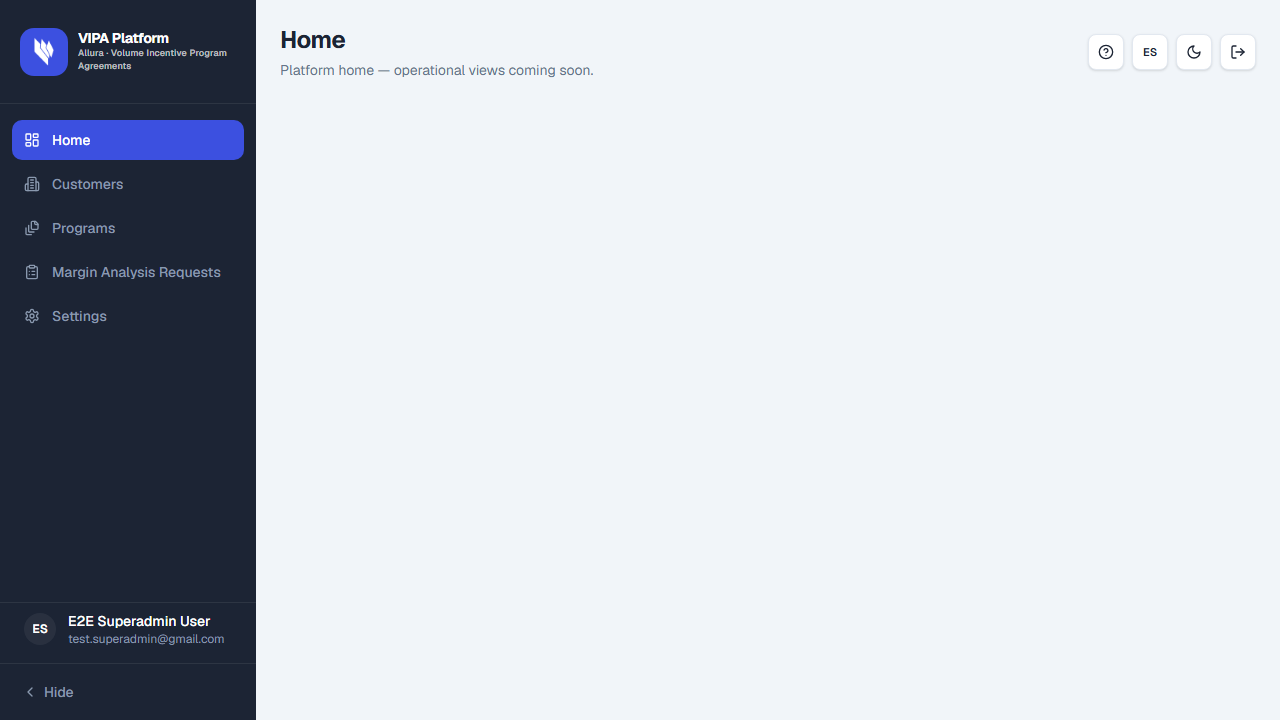
Not everyone sees every row: it depends on permission. A missing item is not a broken screen.
Longer customer / program / margin flows will get their own chapters. Here it is enough to know where they live.
Administration menu
At the top: Back to platform. Then Home (this dashboard). Depending on permission you may also see:
| Item | What it is today |
|---|---|
| Home | This dashboard. Guide: this chapter. |
| Notifications | Expiry windows and routing. Guide: Notifications. |
| Approval Levels | Margin-analysis chain. Guide: Approval Levels. |
| Duplicate Detection | Claim duplicate rules. Guide: Duplicate Detection. |
| SAP / GL Config | GL account and document masks. Guide: SAP / GL Config. |
| Submission Periods | Claim windows (MM-DD). Guide: Submission Periods. |
| Users | Create and invite. Guide: Invite or create a user. |
| Roles | Role catalog. Guide: Roles. |
| Organizations | Channel tenants. Guide: Organizations. |
| Logs | Audit trails. Guide: Logs. |
? is not a row in that list: it sits at the top right, next to language and theme (it opens the chapter for the screen you are on).
Platform dashboard (Home in administration)
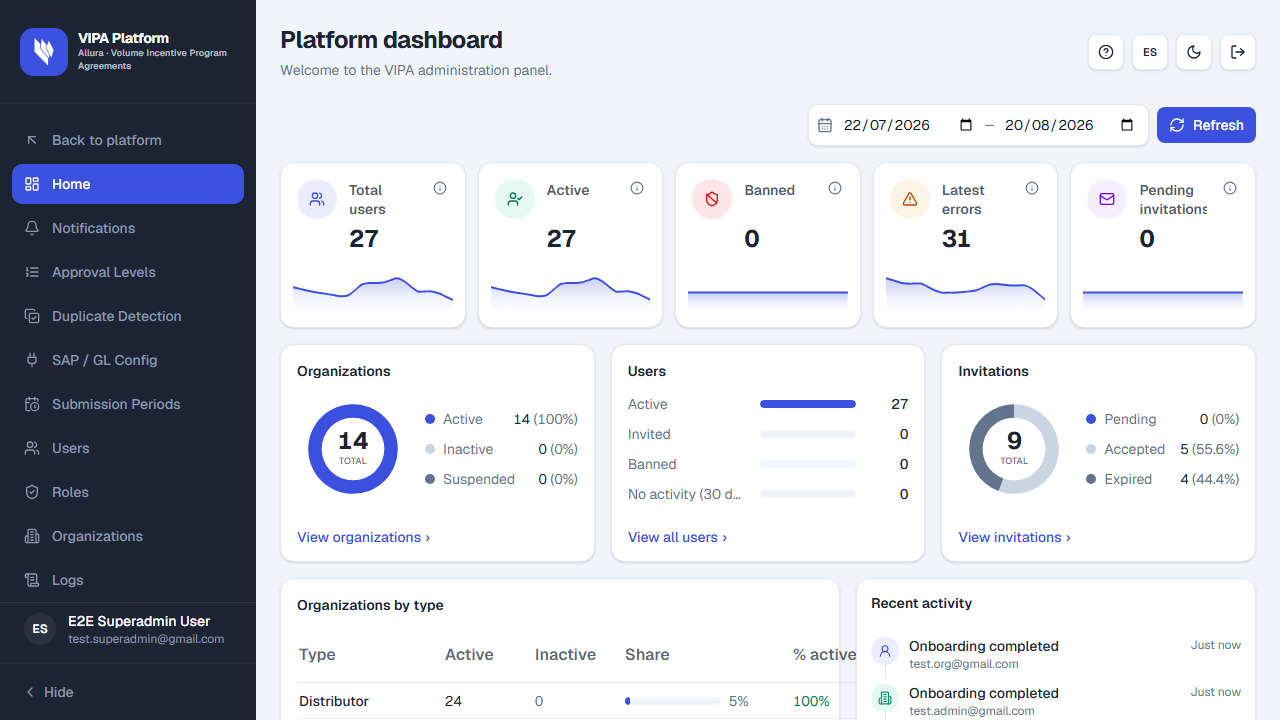
Title Platform dashboard. Text: Welcome to the VIPA administration panel.
Dates
At the top: From, To, and Refresh. Numbers and charts follow that range. vs previous period compares with the same length of time just before.
Number cards (KPIs)
| Card | Short meaning |
|---|---|
| Total users | How many accounts exist now. The line: new users per day in the period. |
| Active | Active users today. |
| Banned | Banned accounts today. |
| Latest errors | Errors logged in the period. |
| Pending invitations | Invitations still pending today. |
Each card’s information icon explains the chart. Many cards link to Users, Logs, or invitations.
Charts and tables
- Organizations — Active, Inactive, Suspended. Link View organizations.
- Users — Active, Invited, Banned, No activity (30 days+). View all users.
- Invitations — Pending, Accepted, Expired. View invitations opens Invitation control.
- Organizations by type — if you can see channel customers. If not: You do not have permission to view channel customers.
- Recent activity — latest events. Empty: No recent activity. Times: Just now, X min ago, and so on.
Quick actions
Title Quick actions. You only see what your permission allows, for example:
- Invite user
- Create user
- Create organization
- View reports (opens Logs)
How to move around
- Sign in. If you are staff, you land on the platform (Home).
- For channel operations: Customers, Programs, Margin Analysis Requests.
- For accounts and tenants: Settings → Users or Organizations.
- To return to platform work: Back to platform.
- Unsure about a button: ? at the top right (next to language and theme).
If something goes wrong
| What you see | What to do |
|---|---|
| You do not see Settings | Your account is not platform staff, or you lack that access. |
| You do not have permission to view this resource. | That screen is not for your role. Go to Home or ask an administrator. |
| The dashboard looks almost empty | Expected if your role is limited: only allowed figures and buttons appear. |
| A settings item (SAP, periods…) does not “run” claims | That is configuration. This cut of the manual does not cover live claims or SAP. |
Usual next steps: Organizations, then Invite or create a user.