Help
How to sign in
This guide covers everyday access and first-time setup (when you are invited or your account is created for you). Button and field names match the English UI.
Before you start
- An administrator already created your account. There is no “Sign up” button.
- You have the email for that account.
- If this is your first time, check email (including spam) for the invitation or a temporary password.
- You will need an authenticator app on your phone or computer (Google Authenticator, Microsoft Authenticator, Authy, or any app that generates 6-digit codes). VIPA requires this second factor for everyone.
The sign-in screen is at https://www.vipaallura.com/login. At the top right you will see ?, next to language and theme: it opens the guide for this screen.
Change the language
On the sign-in screen there is a round EN or ES button at the top right, next to ? (help) and the theme control (light/dark).
The button shows the language you will switch to. If you see ES, tapping it switches the interface to Spanish. Your choice is remembered on later visits.
Sign in with email and password (everyday access)
- Open VIPA. You should see Sign in and Enter your email and password to access the platform.
- In Email, type your address (for example
name@company.com). - In Password, type your password. The field icon shows or hides the characters.
- Click Sign in. While it runs, the button reads Signing in…
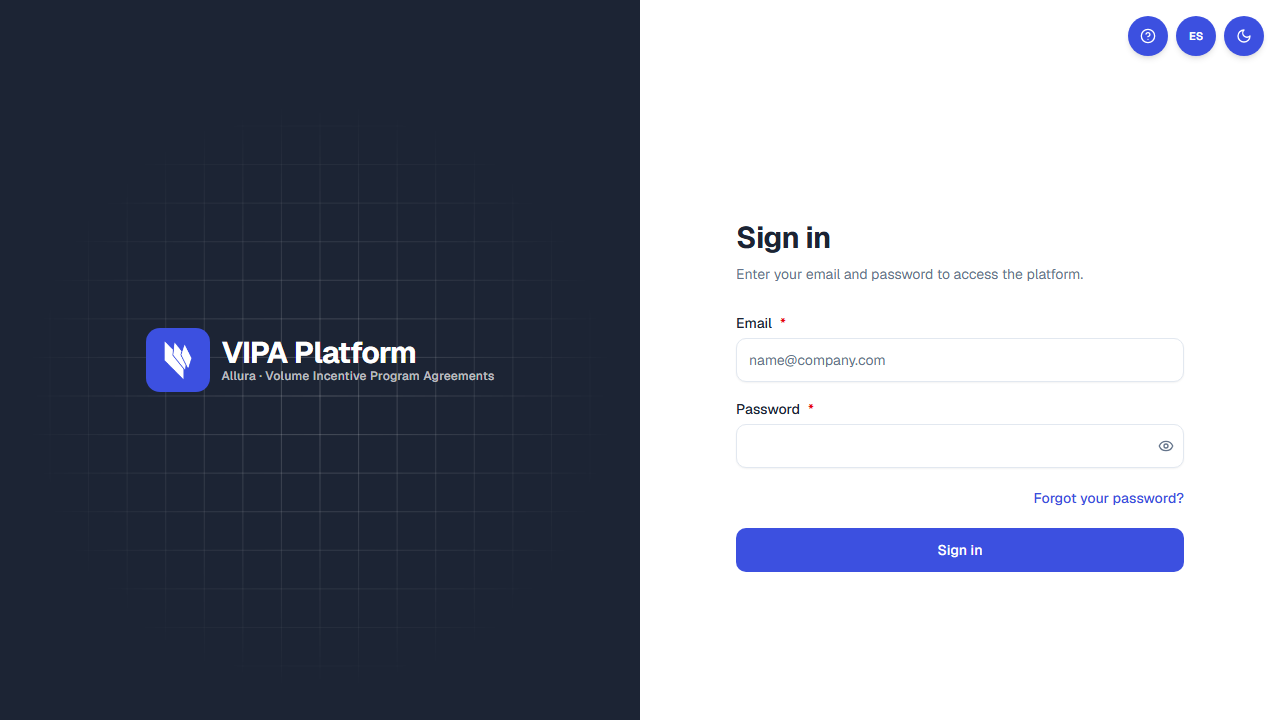
If the email or password does not match, a red alert appears and you stay on the same screen. Try again; a new account is not created.
Two-step code (if you already set up MFA)
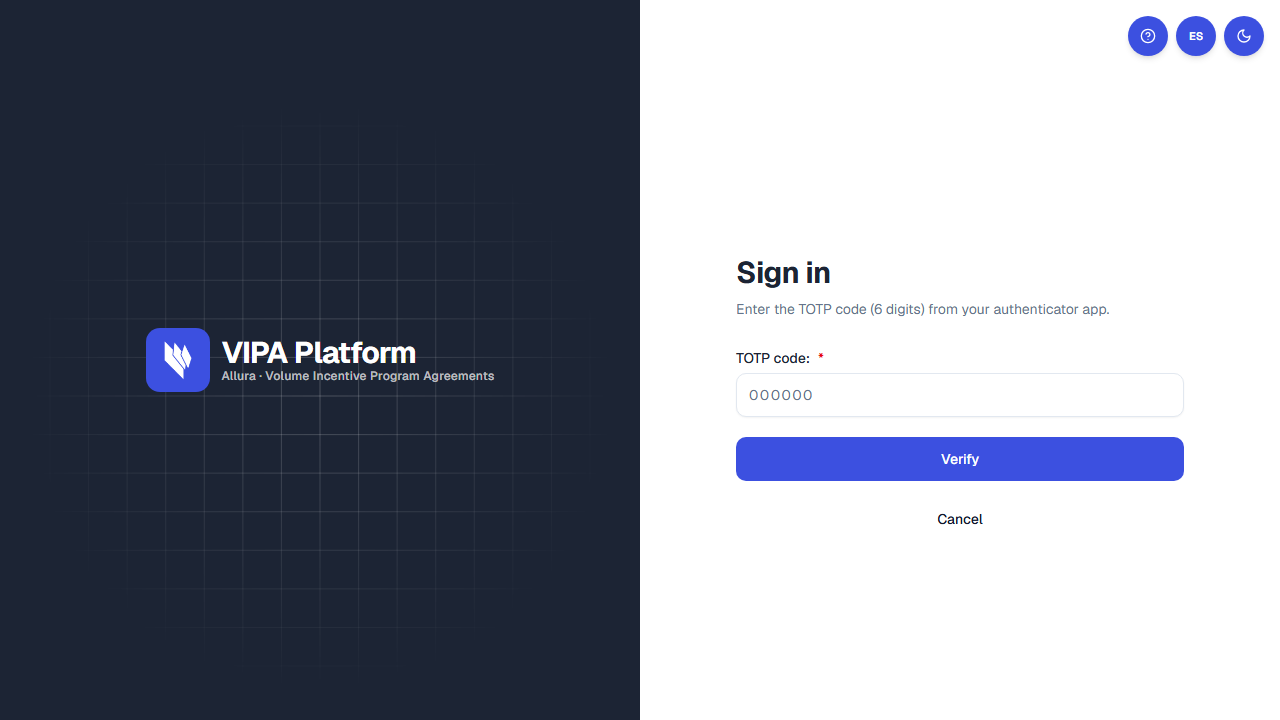
After the password, VIPA asks for the authenticator code:
- Open the app and read the 6-digit VIPA code (it changes about every 30 seconds).
- Type it in TOTP code: (the box shows
000000as a hint). - Click Verify.
If the code is wrong or already expired, wait for a new one in the app and verify again. Cancel ends that check and returns you to email and password.
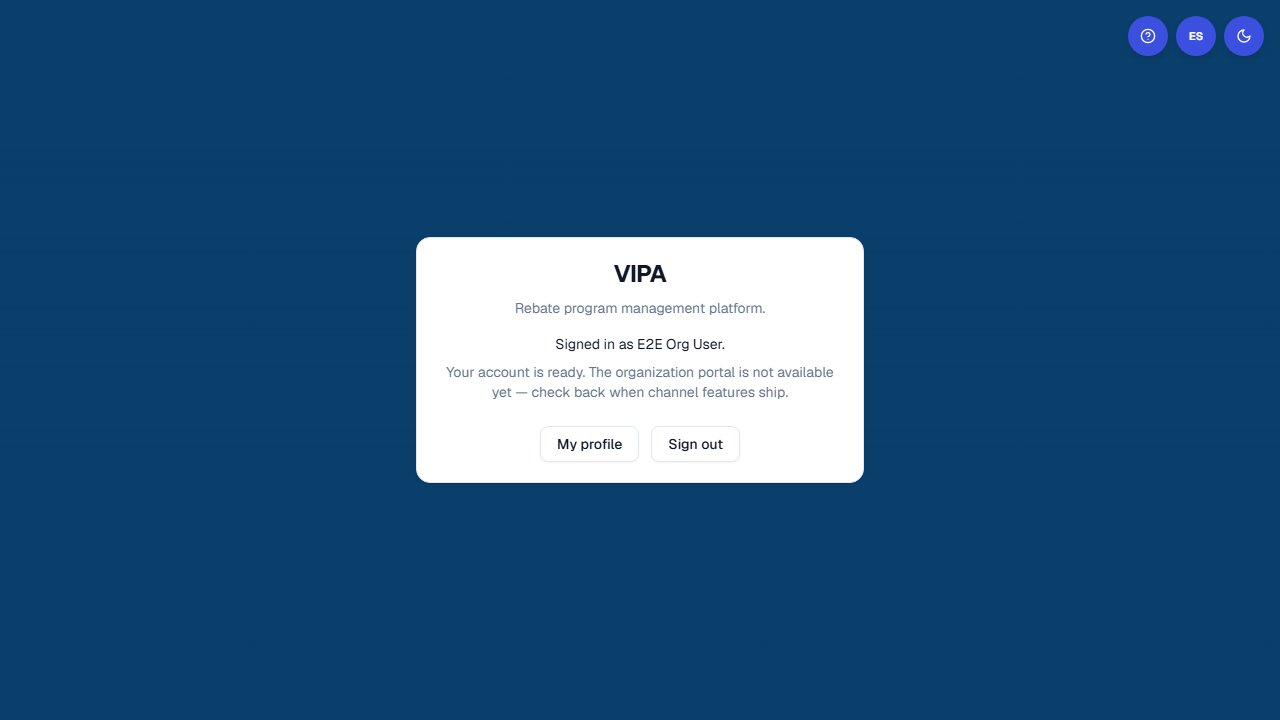
When sign-in succeeds, Allura staff land on platform Home (Platform home — operational views coming soon.). From there, Settings opens administration. If your account belongs to a channel organization, you see a card with Your account is ready. The organization portal is not available yet — check back when channel features ship. At the top right, round ?, language, and theme controls match the sign-in screen. On the card you will find My profile and Sign out.
The menu map is in Administration panel.
First-time access (invitation or new account)
The first time, VIPA walks you through setup. You do not hunt through Settings: the steps appear in order. On the left you will see Step X of Y and the step title (for example First things first, Secure your sign-in, Lock it with MFA).
1. Open the email link
Click the invitation link on the device you will use.
If another account is already signed in in that browser, VIPA says: Another account is already signed in this browser. Sign out first, or open the link in a private window.
If the link expired or was already used, you will see The invitation link has expired or was already used. Request a new invitation from your administrator. Do not reuse a link you already opened.
While VIPA processes the link you may see Verifying your access link… or We are processing your invitation. You will be able to set your password shortly.
2. Welcome
Screen Welcome aboard!
- Read the short summary (password if needed, your name, and MFA).
- Click Let's go.
3. Password (only if asked)
Two cases:
| Situation | What you see | What to do |
|---|---|---|
| You were invited by email | Set password | Create a password and confirm it. You are not asked for a current password. |
| Your account was created with a temporary password | Required password change | Enter Current password (the temporary one) and the new password twice. |
Requirements (the list turns green as you meet them):
- At least 12 characters
- Includes a lowercase letter
- Includes an uppercase letter
- Includes a number
- Includes a symbol
Click Save password.
4. Full name (only if it is missing)
Screen Your full name. Type how you should appear in VIPA and click Continue.
5. Two-factor authentication
Screen Set up two-factor authentication.
- Open the authenticator app and scan the QR code.
- If you cannot scan, use If you cannot scan the QR code, enter this key manually: and, if needed, Copy secret.
- Type the 6-digit code in TOTP code.
- Click Verify.
Keep access to that app: you will need it every time you sign in.
6. Setup complete
Screen Setup complete. Wait for the countdown or click Continue. VIPA takes you to your home screen.
If you refresh in the middle of setup, you resume the step that is still pending; you do not see Welcome again.
Forgot your password
On Sign in, click Forgot your password?
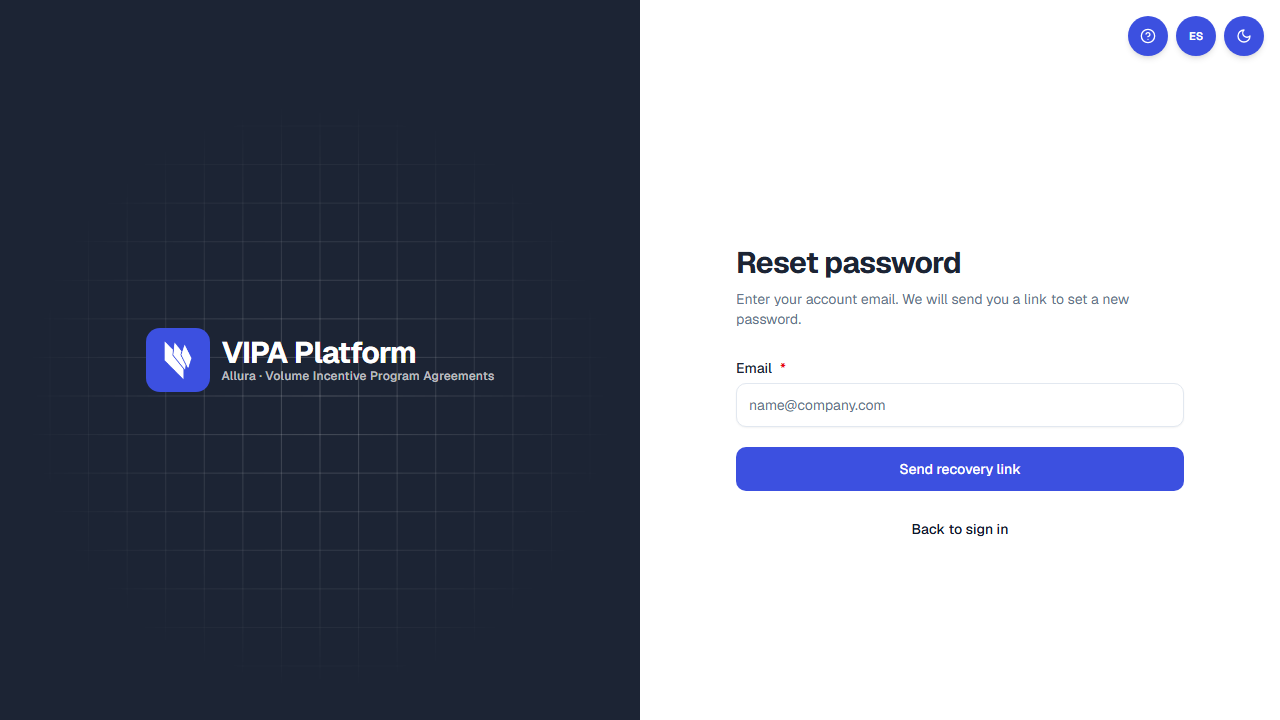
- On Reset password you will see Enter your account email. We will send you a link to set a new password. Enter the account email. Back to sign in leaves without sending anything.
- Click Send recovery link.
- You will see Check your email. If that account exists, a link arrives (it expires soon).
- Open the link. The screen is still titled Reset password, with Set a new password to regain access to your account. Create the new password (same 12-character rules) and click Save password.
- Return to Sign in. You may see Your password was updated. Sign in with your new password.
For security, the “check your email” message also appears if the address is not registered, so existing accounts are not revealed.
If something goes wrong
| What you see | What to do |
|---|---|
| Wrong email or password | Check caps lock and the exact email. Use Forgot your password? if needed. |
| MFA code rejected | Wait for the next 6-digit code. Set the phone clock to automatic. |
| The invitation link has expired or was already used… | Request a new invitation. Do not resend a link that was already opened. |
| Another account is already signed in this browser… | Sign out, or use a private window. |
| Access forbidden (You do not have permission to view this resource.) | That screen is not for your role. Go to home, or contact an administrator. |
You cannot skip MFA during first-time setup: it is required for every account.