Help
Notifications
How to set expiry warning windows and who is notified for platform events. Button names match the English UI.
This is for Allura staff with permission to see Notifications in administration. Saving here configures future alerts; it does not send a test email by itself.
Related: Administration panel.
Before you start
- You are signed in to VIPA.
- In the platform menu, click Settings.
- In the administration sidebar, click Notifications.
If the row is missing, your role cannot change these settings.
The screen
Title Notifications. Text: Expiry warning windows and who gets notified for each platform event. Renewal-due timing is tiered by role so reminders escalate as expiry nears.
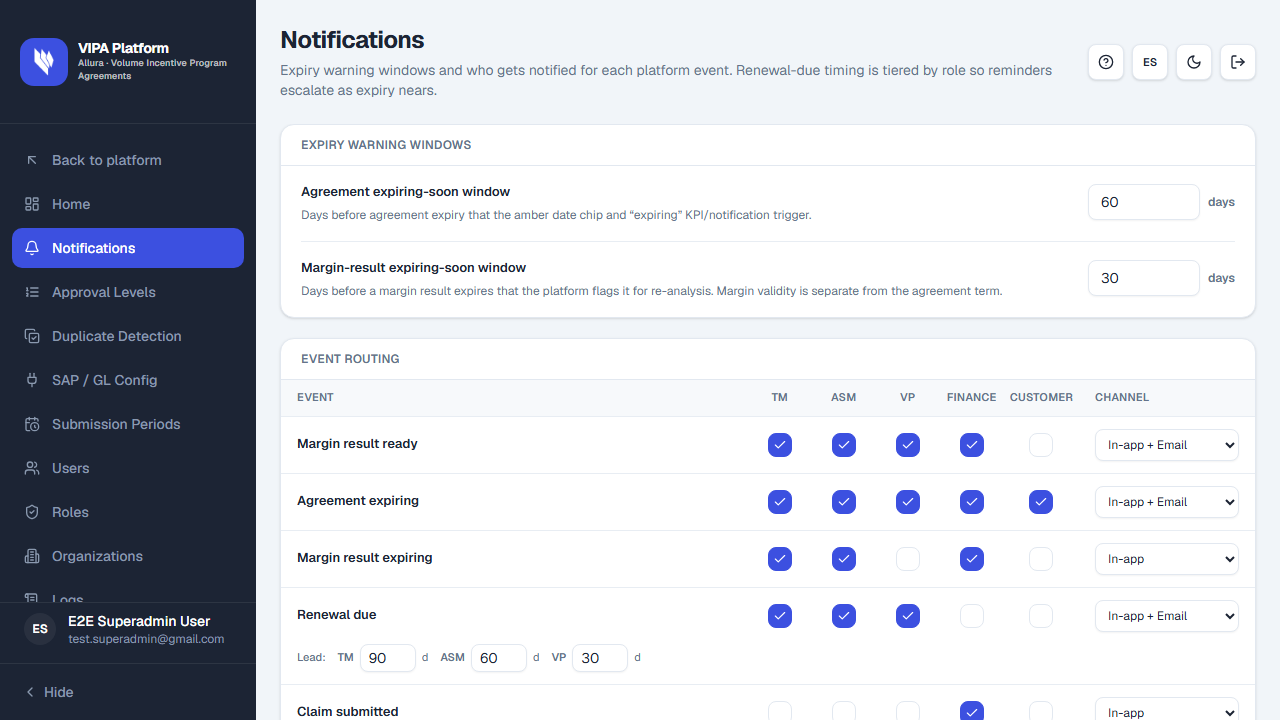
Expiry warning windows
| Field | What it does |
|---|---|
| Agreement expiring-soon window | Days before agreement expiry for the amber date chip and “expiring” KPI/notification. Unit: days. |
| Margin-result expiring-soon window | Days before a margin result expires that the platform flags it for re-analysis. Margin validity is separate from the agreement term. |
Event routing
Table Event routing. Columns: Event, then TM, ASM, VP, Finance, Customer, and Channel last.
Channel options: In-app, Email, In-app + Email, Off.
Events include Margin result ready, Agreement expiring, Margin result expiring, Renewal due, Claim submitted, Dispute raised, Approval needed. Some events show Lead: and a number of days (d).
Save, reset, restore
At the bottom right:
- Save settings — writes the section. Toast: Settings saved.
- Reset — discards unsaved edits (Unsaved changes discarded).
- Restore defaults — loads factory values into the form. Confirm Restore default settings? then Save settings to persist. Toast: Factory defaults loaded — save to persist.
The bell
At the top right, next to ? (help), the bell shows how many unread notifications you have. It appears on the platform and in the portal.
- Click the bell to see the 10 most recent. Clicking one marks it as read and opens the request, program or claim.
- Mark all as read clears the counter. When nothing is unread, the option is disabled.
- View all notifications opens the Notifications page, with the All and Unread filters and its own Mark all as read. If there is more than one page, use Previous / Next.
- New notifications show up within about a minute, when you return to the tab or when you open the bell, with a short toast (if more than three arrive at once, a single toast with the total).
You only receive the events an administrator routed to your role with the In-app or In-app + Email channel. Emails are not sent yet.
If something goes wrong
| What you see | What to do |
|---|---|
| You do not see Notifications | You lack settings permission. Use Home or ask an administrator. |
| You do not have permission to view this resource. | Same: this screen is not for your role. |
| Could not update notifications. Try again. | Mark all as read failed on the Notifications page. Try again. |