Help
Organizations
How to add and maintain channel tenants (distributors, dealers, and so on). Button names match the English UI.
This is done by Allura staff in the administration panel. If you do not see New organization, your account cannot create tenants.
After you create the organization, invite its people with Invite or create a user. Choose Organization (tenant) and this tenant.
Before you start
- You are signed in to VIPA.
- In the platform menu (Home, Customers…), click Settings. That opens the administration panel.
- In the administration sidebar, click Organizations.
If you see Back to platform at the top of the menu, you are already in administration.
The list
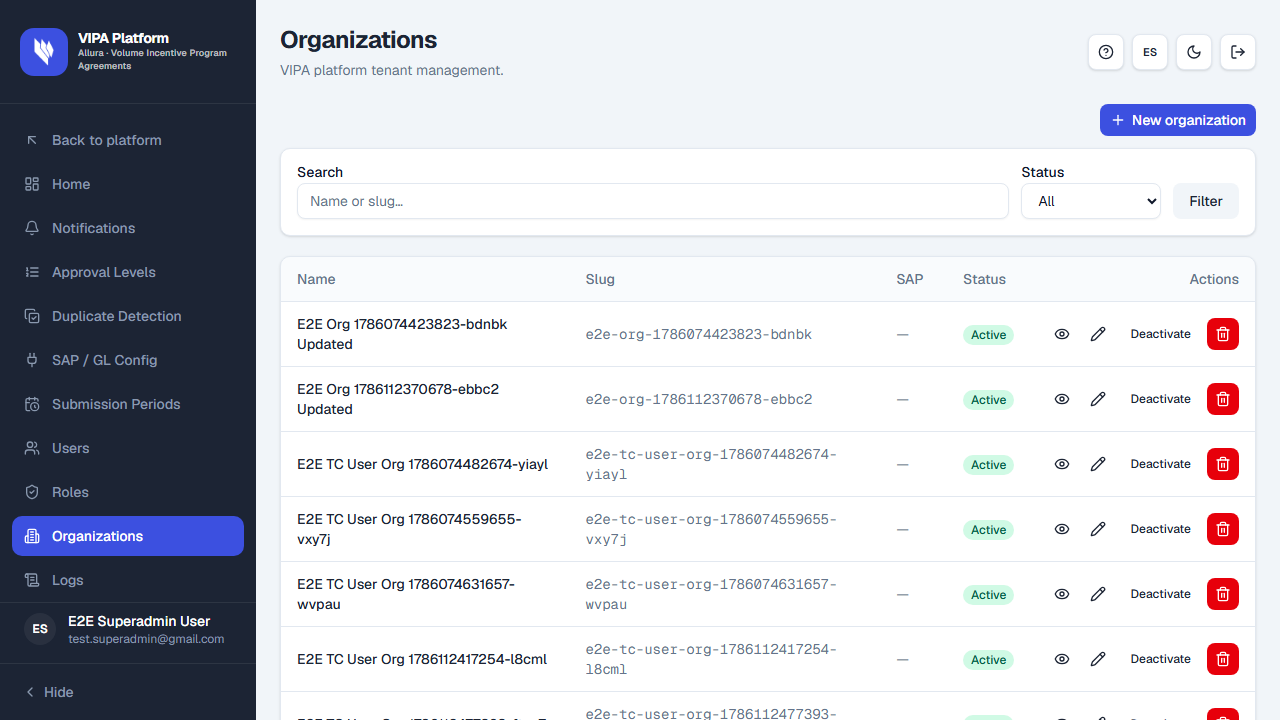
Title Organizations and VIPA platform tenant management.
Top right: New organization.
Filters:
- Search — Name or slug… Then Filter.
- Status — All, Active, Inactive (applies as soon as you pick one).
- Clear filters if you applied a search or status.
The table: Name, Slug, SAP, Status (Active / Inactive), Actions.
If there are no rows: No organizations match your search.
New organization
Click New organization. Title New organization and Register a new tenant on the platform.
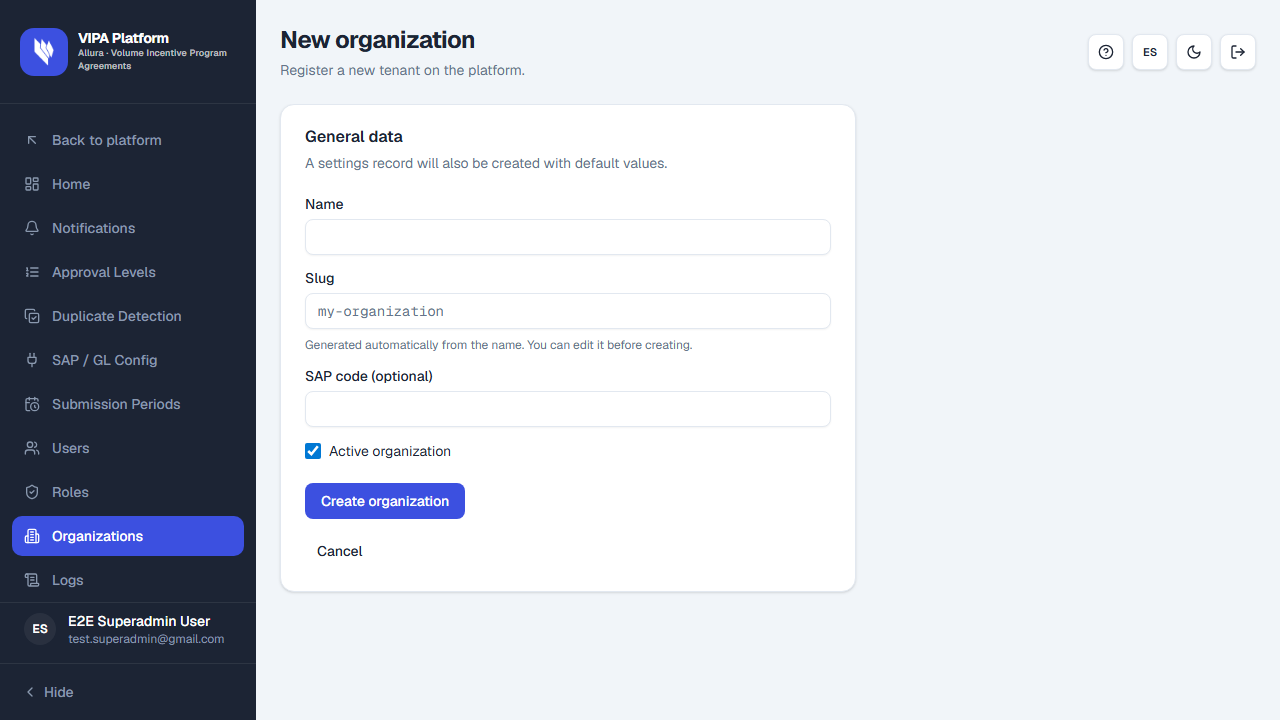
Under General data you will see A settings record will also be created with default values. Fill in:
- Name — how it appears in lists.
- Slug — filled from the name (Generated automatically from the name. You can edit it before creating.). Lowercase letters, numbers, and hyphens; must be unique. Placeholder:
my-organization. - SAP code (optional) — if you already have it; otherwise leave it blank.
- Active organization — usually already checked. Unchecked, the tenant shows as Inactive.
- Click Create organization. While it saves, the button reads Saving…
- Cancel returns to the list without creating.
On success: Organization created successfully and the profile opens.
View and edit
On the list, the eye icon is View / View detail.
On the profile:
- At the top: the name, Slug: and the Active or Inactive badge.
- ← Organizations returns to the list.
- Edit opens the same fields (name, slug, SAP, active). On edit, the slug hint is Lowercase letters, numbers, and hyphens. Must be unique.
- Deactivate / Reactivate (the hint says Deactivate tenant / Reactivate tenant).
- Delete only if you are a superadmin and the organization has no users. Confirm Delete organization?
Two cards:
| Card | What you see |
|---|---|
| Summary | SAP code, Active members, Created |
| Configuration | SAP, DocuSign, and integrations. Fields: SAP endpoint, SAP credentials ref, DocuSign account ID, DocuSign credentials ref, Default GL account. Save settings. |
You can fill those integration fields now. Live SAP or DocuSign sending is not part of everyday work in this cut of the manual.
The list also has a pencil (Edit), Deactivate / Activate, and delete (same rules).
If something goes wrong
| What you see | What to do |
|---|---|
| You do not see New organization | Your role is read-only (for example auditor) or you lack permission. |
| The slug is rejected | Use only lowercase letters, numbers, and hyphens, no spaces. It must be unique. |
| The organization cannot be deleted because it has associated users. | Move or remove those people under Users first. A tenant with people in it is not deleted. |
| Could not delete the organization. Please try again. | Try again. If it persists, ask a superadmin. |
| You invite someone and no roles appear | In Invite user, pick Organization (tenant) and this organization before checking Roles. |
When the tenant is Active, you can invite channel staff. That organization’s portal (claims, and so on) is not in this cut of the manual.