Help
Profile and security
How to update your name, change your password, and manage two-step authentication after you are signed in. Button names match the English UI.
You need an active session. If you do not have an account yet, see How to sign in.
Open your profile
- Sign in to VIPA with email, password, and the 6-digit code if asked.
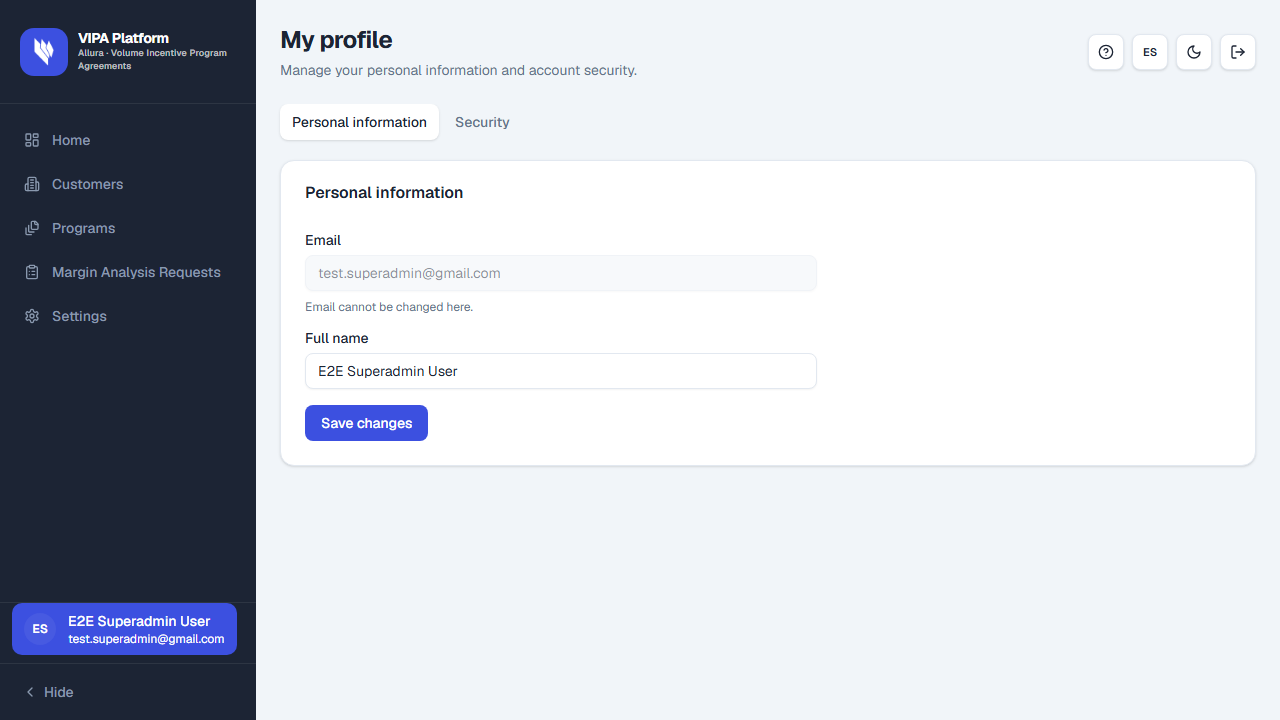
- If you are Allura staff: in the left sidebar, at the bottom, click your name or initials (the letter circle). ? (help) is at the top right, next to language and theme.
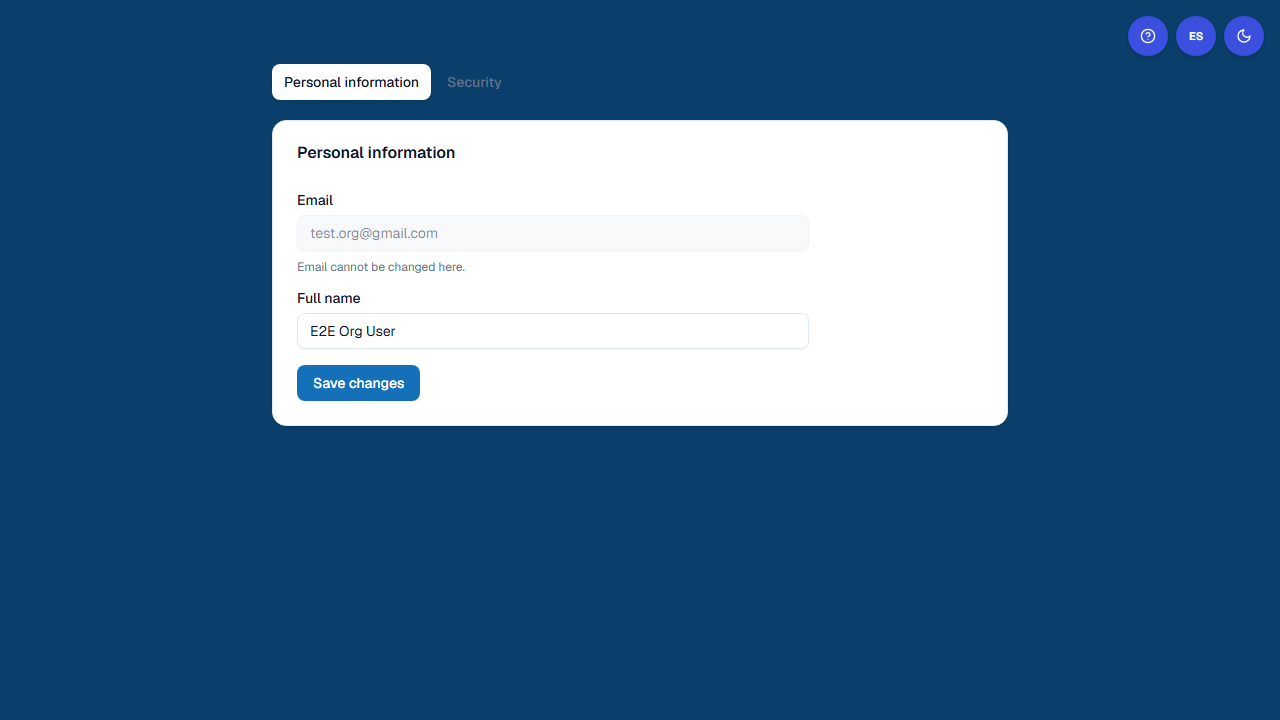
- If your account is a channel organization: on the home card (no menu yet) click My profile. Round ?, language, and theme sit at the top right, same as on sign-in.
- My profile opens, with Manage your personal information and account security.
There are two tabs: Personal information and Security.
If your account is a channel organization, My profile opens without the platform menu:
Personal information
This tab opens by default.
- Email is shown but cannot be changed here (Email cannot be changed here.). If the address is wrong, ask a platform administrator.
- In Full name, type how you should appear (lists, activity, sidebar).
- Click Save changes. While it runs, the button reads Saving…
- On success you see Profile updated.
The name cannot be empty and cannot exceed 255 characters.
Change your password
Open the Security tab. In the Password card you will see Change password and Update your sign-in password.
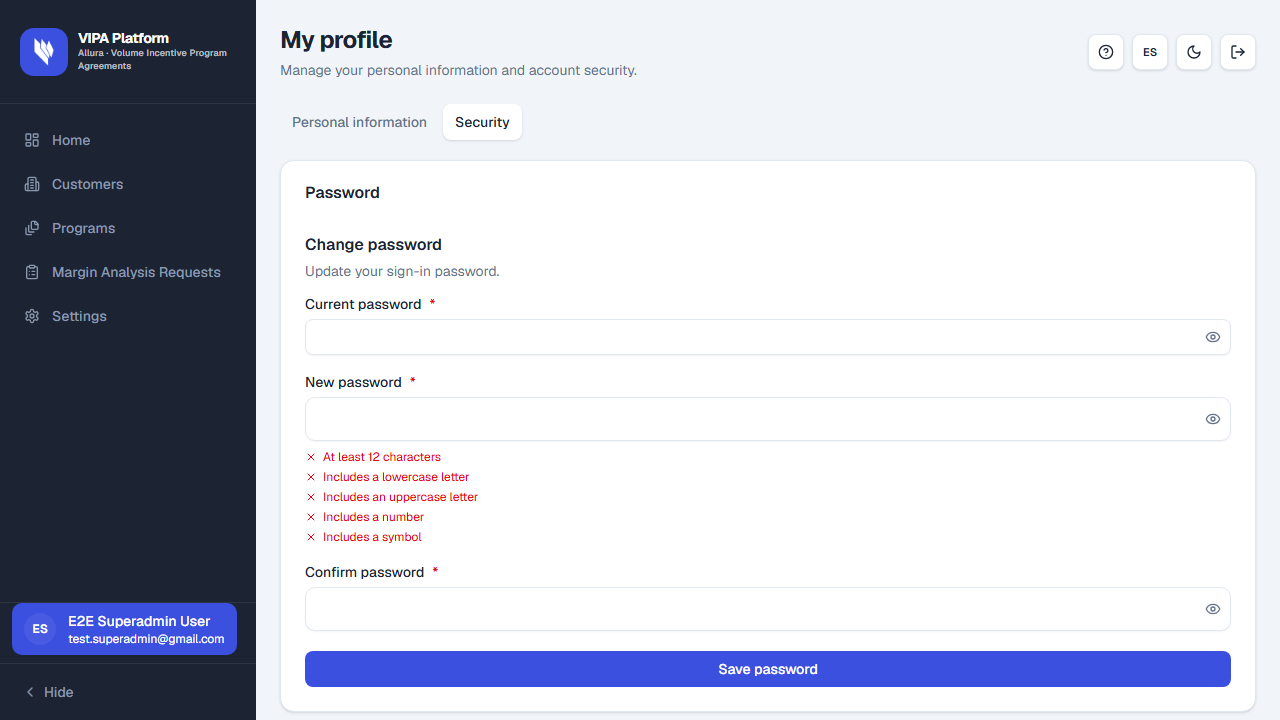
Further down on the same tab is MFA (next section).
- Fill in:
- Current password
- New password
- Confirm password
- The requirement list turns green as you meet them (at least 12 characters, uppercase, lowercase, number, and symbol).
- Click Save password.
Sometimes VIPA asks for a Verification code sent to your email. Click Send verification code, check your inbox, type it in the box (Code from email), and save again.
Use a password you have not used before, and do not share it.
Two-step authentication (MFA)
On Security, below the password card, is Multi-factor authentication.
If it is already enabled
You will see Two-step authentication with authenticator app (2FA) and the Enabled badge.
You will still need the 6-digit app code every time you sign in.
If it is not set up yet
You will see MFA is not set up yet. You can set it up now with a QR code. and the Set up MFA button.
- Click Set up MFA.
- Scan the QR code with the authenticator app (or Copy secret).
- Type the 6-digit code in TOTP code and click Verify.
Reset MFA (new phone or lost app)
Only if MFA already shows Enabled.
- Click Reset MFA (red button).
- Read the warning Reset MFA?: the current second factor is removed and a new QR is shown.
- Click Cancel if that was not what you wanted, or Reset MFA to confirm.
- Scan the new QR and verify the 6-digit code.
Do not sign out until you finish verifying the new QR, or you may be locked out. If you cannot get in, ask an administrator to reset MFA for your user.
If something goes wrong
| What you see | What to do |
|---|---|
| You cannot find your name in the bar | If you are staff: expand the left sidebar (arrow) or look for the initials circle at the bottom. If you are channel: on home click My profile (there is no sidebar). |
| You are on My profile with no menu | Channel account: use the browser Back button, or open VIPA home again. |
| Email cannot be edited | That is expected. Ask an administrator to change it. |
| The new password does not save | Check the 12-character rules and the Verification code from email if VIPA asked for one. |
| You lost the authenticator app | Use Reset MFA if you can still sign in; otherwise contact an administrator. |